Member guide
Using your member area
The member area changed recently. This is where everything is now, and what to do when something does not look right.
Signing in
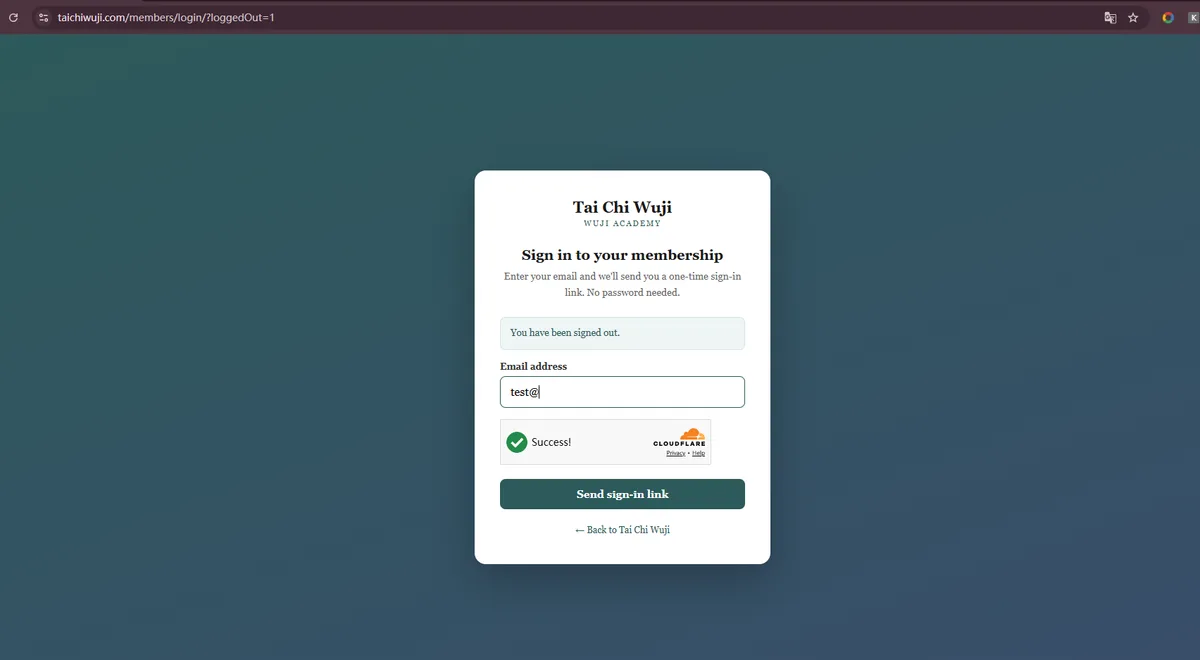
Go to taichiwuji.com/members, or chooseMember login from the menu. Enter the email address you joined with, and we send you a link. Click it and you land on your courses — there is no password to remember.
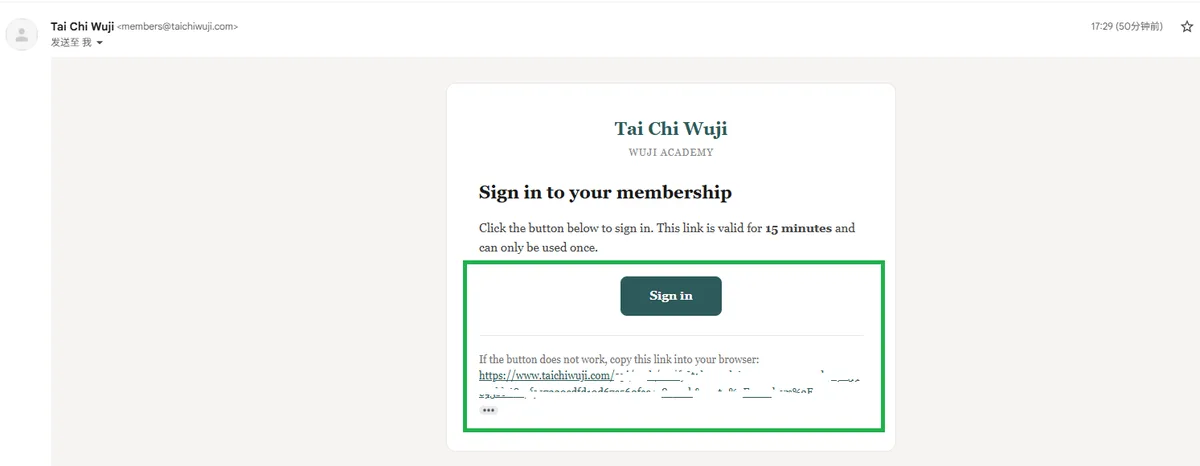
The link works once and expires in fifteen minutes. If it has expired, or you closed the tab, simply request another. If you are already signed in on that browser, going to /memberstakes you straight in.
The three tabs
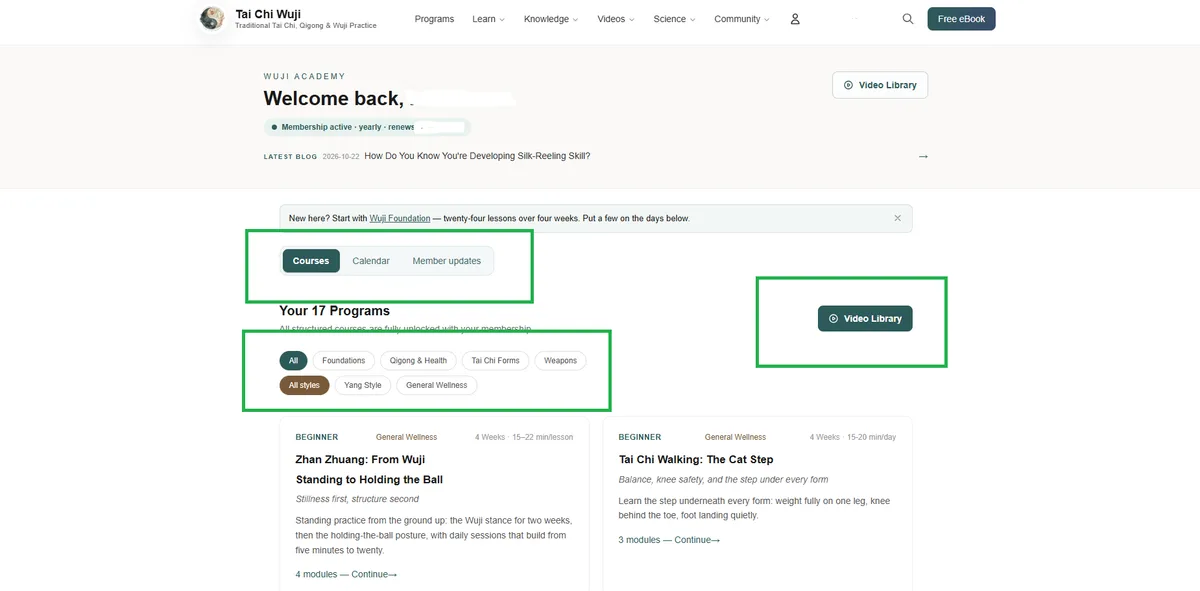
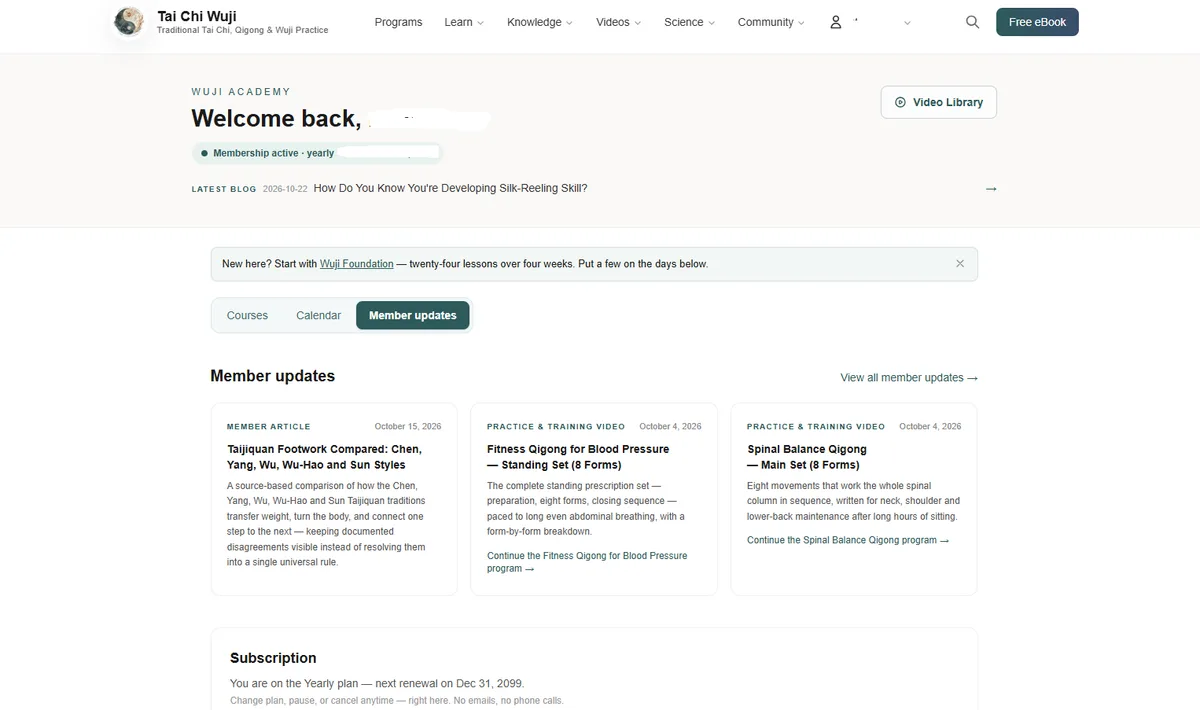
The page opens on your courses. The other two sections sit beside it:
- Courses — all seventeen programmes, with the lessons inside each one. This is where you start.
- Calendar — your own plan: what you intend to practise, and when. Optional.
- Member updates — anything newly added, so you can see the library growing.
Building a week
Open Calendar, pick a day, then choose morning, afternoon or evening. Each part of the day holds one plan, and a plan can hold as many practices as you like — a form, a qigong set, ten minutes of standing. The list shows roughly how long each one takes.
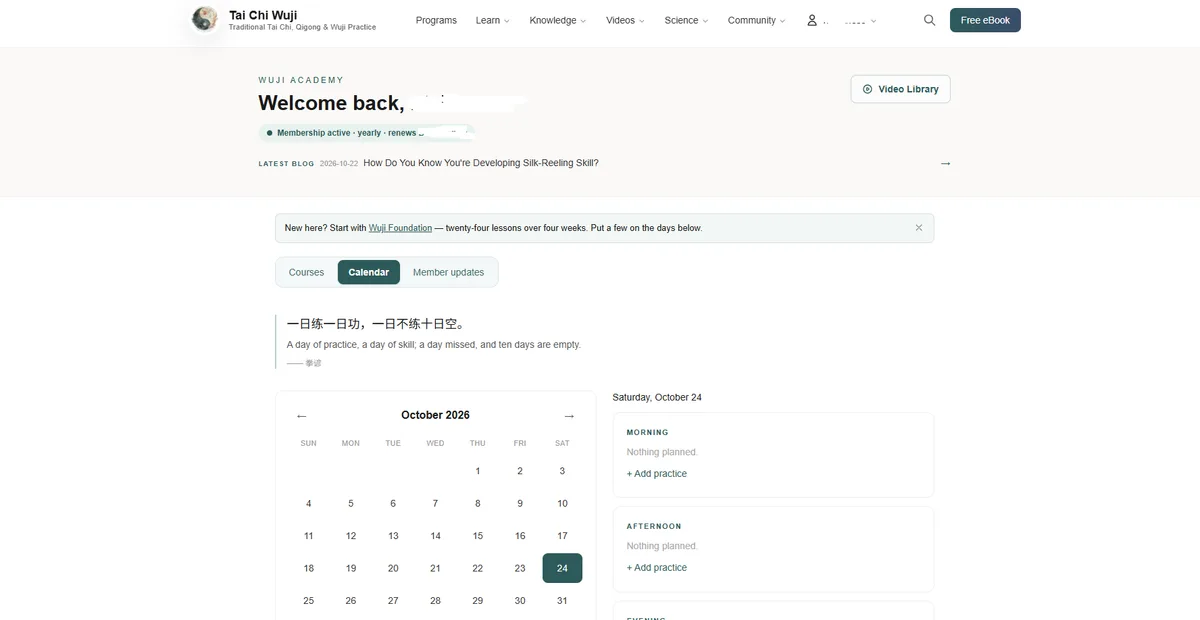
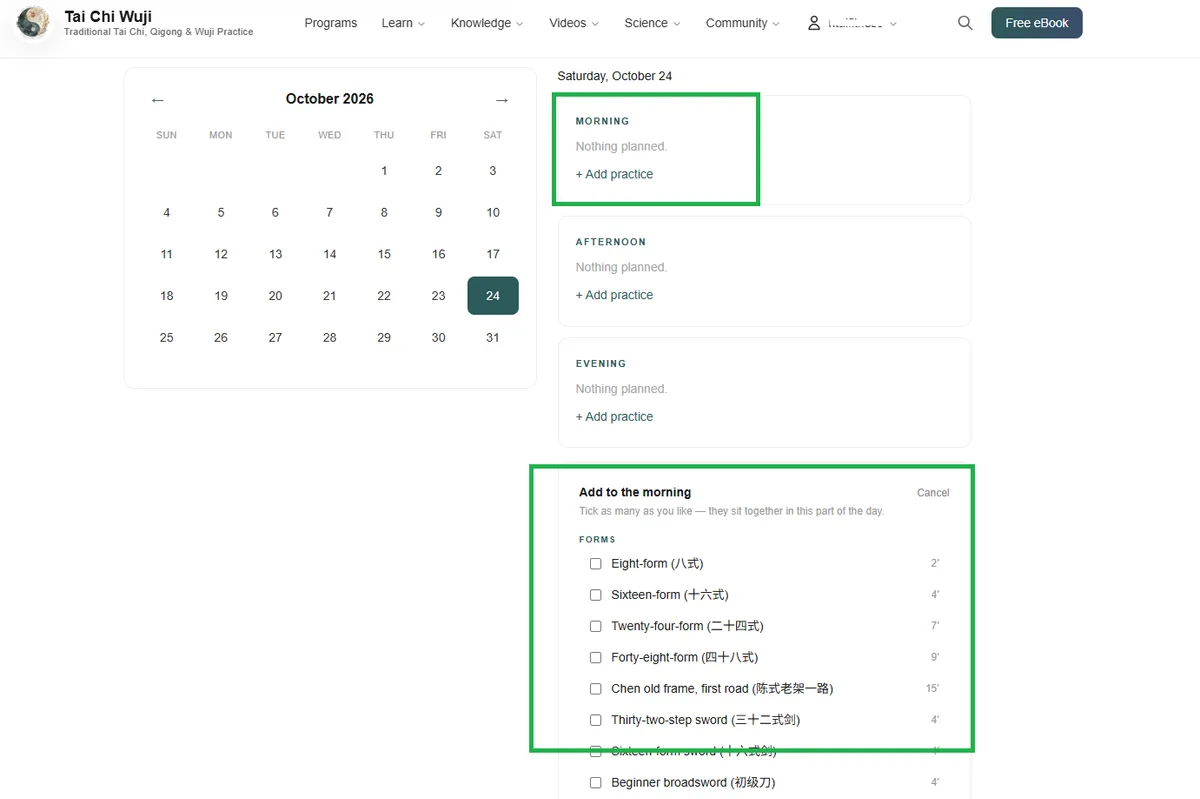
Change it, move it or clear it whenever you want. Nothing is marked complete, nothing is scored, and no one else sees it. The times are estimates, not targets: ten relaxed minutes are worth more than twenty stiff ones.
Watching and reading
Lessons open in the page. The section list at the top jumps straight to a movement or a part of the course, so you do not have to scroll through everything to find where you stopped.
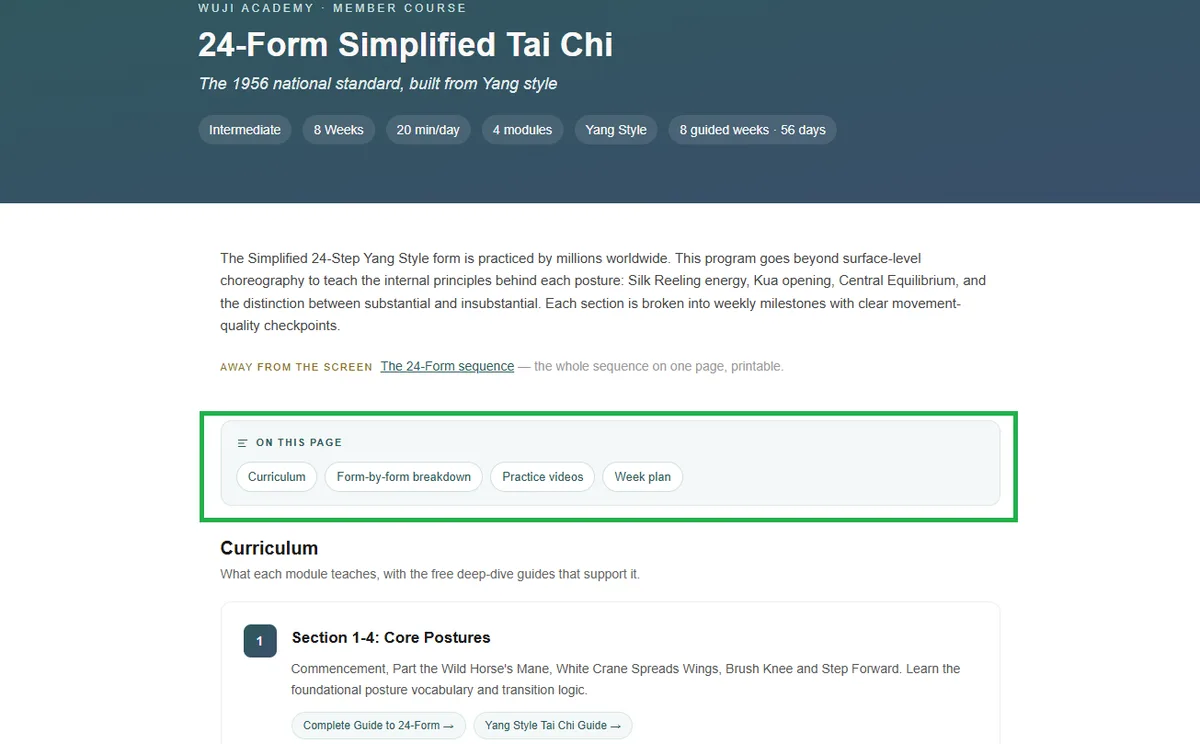
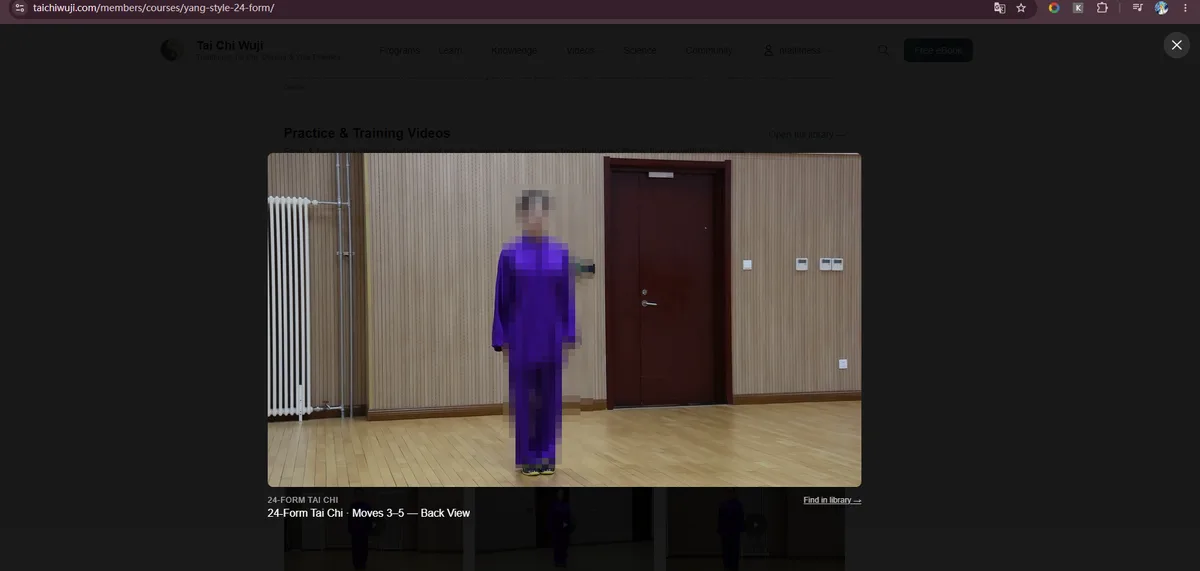
Videos play where they sit, so you do not lose your place by going to a separate library. Course images are private, so they take a moment to appear the first time — a second visit in the same tab is immediate.
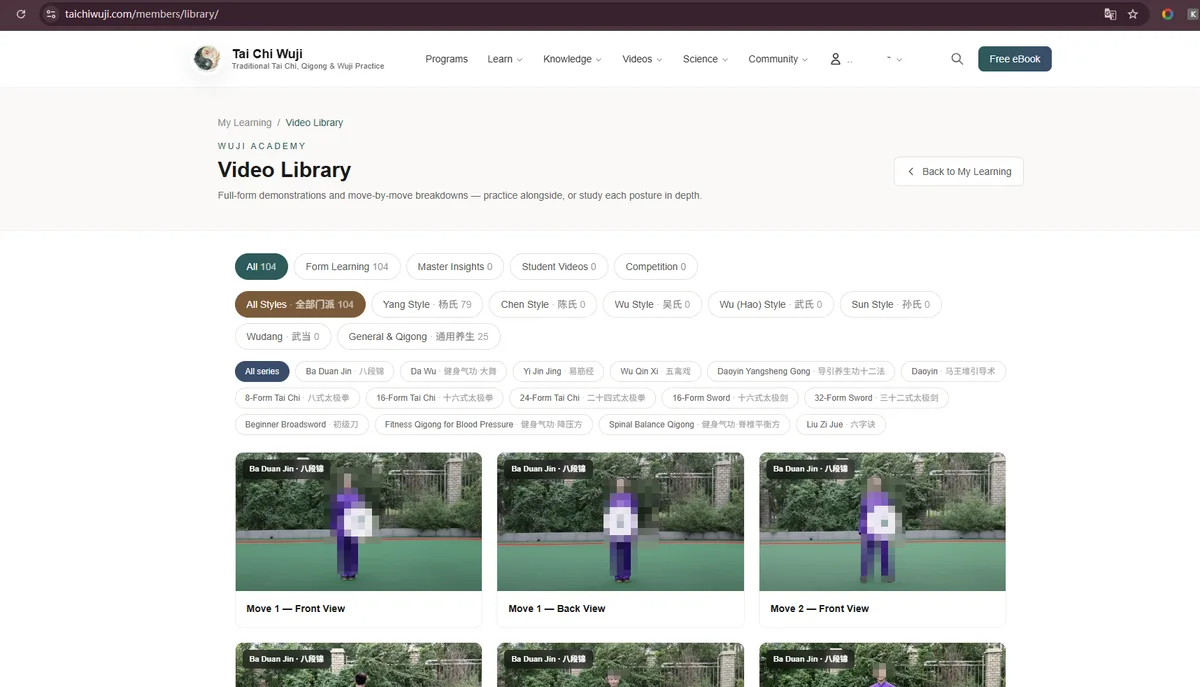
If you would rather browse than follow a course, theVideo Library holds the full collection in one place.
We do not record whether you finished a lesson. A course is a path, not a checklist, and what you did with a session is yours to judge.
Taking it off the screen
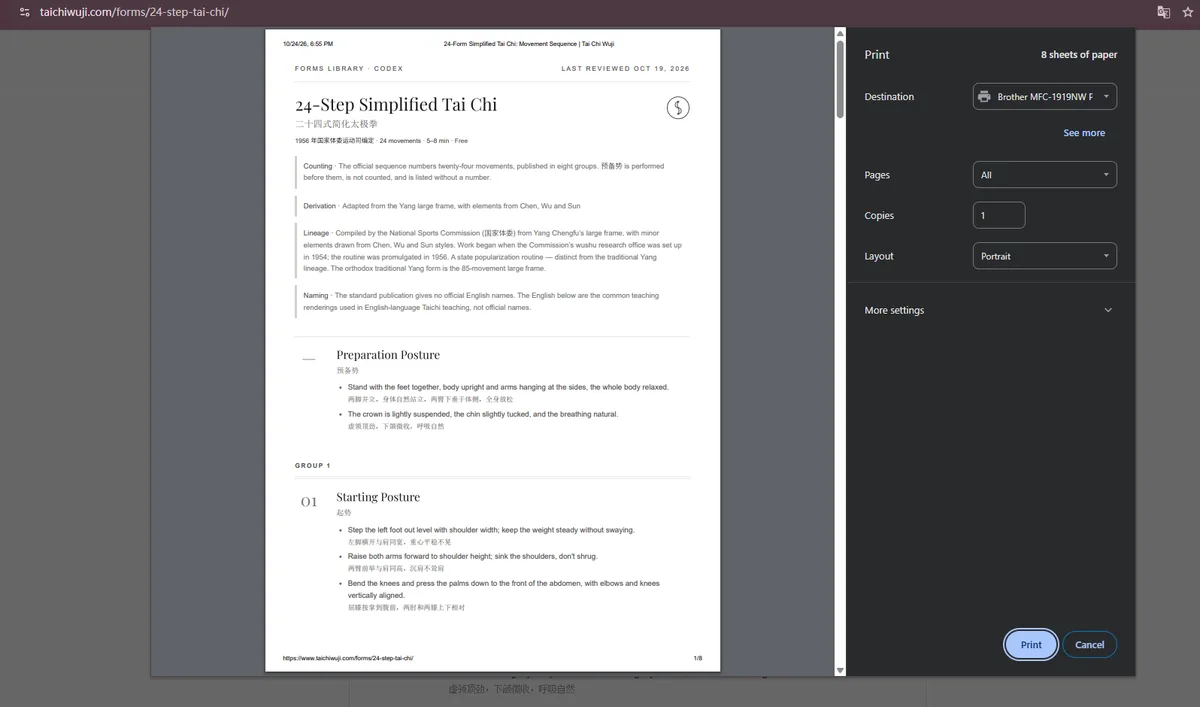
Most courses end with Away from the screen — a link to the whole sequence on a single page. Print it, or save it as a PDF from your browser's print dialogue. The printed version drops the navigation and keeps the movements, so it fits on a few sheets.
When something looks wrong
Refresh the page once first — F5 on Windows, ⌘R on a Mac. Most surprises are a cached page from before an update.
If it is still wrong, reply to any email from us and tell us three things: which browser you are using, what you clicked, and what you saw. A screenshot helps more than a description.
Technical problems included — write tohello@taichiwuji.comat any time. It reaches us directly; there is no ticket system in between.
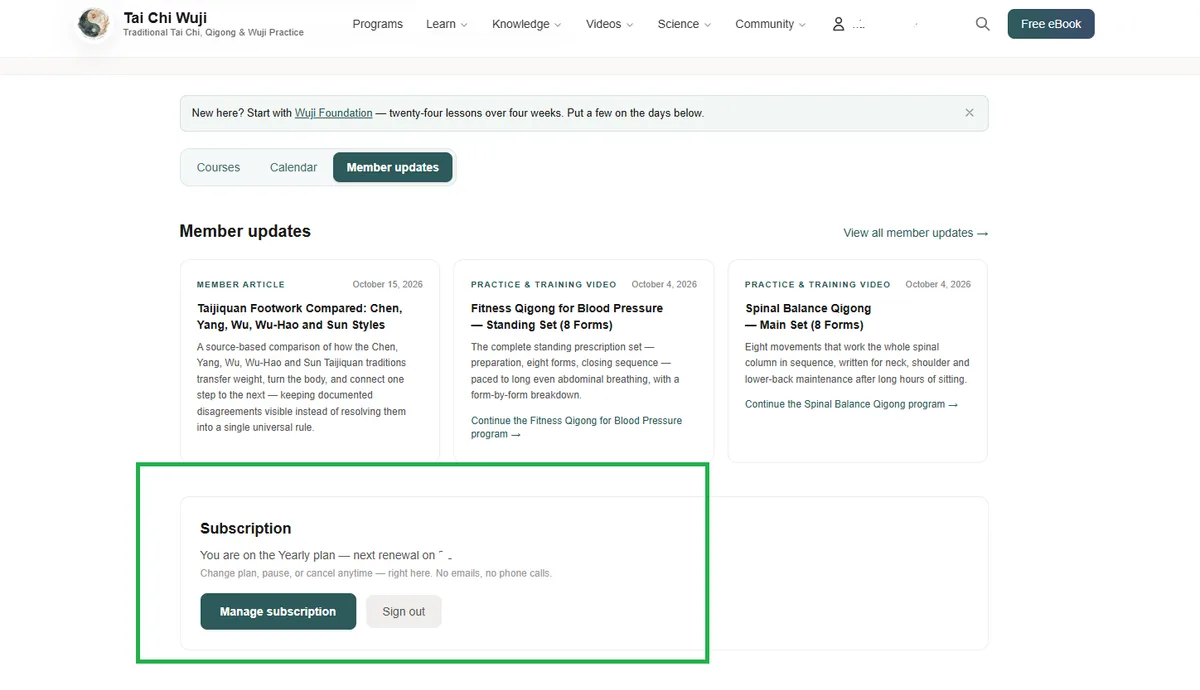
For anything to do with your subscription — changing plan, a failed payment, cancelling — openManage subscription at thebottom of the member page. It is handled there, in one place, without email.